| Search My Blog |
|
|
| Links |
|
|
| Visitors |
|
|
| Sponsors |
|
|
|
| A Preview of Microsoft's Windows Vista |
| Friday, January 5, 2007 |
Amid speculation that Microsoft might again slip in its own timetable for the successor to Windows XP, the software giant today released the first public beta of its new Windows Vista operating system. The tweaks to prepublic release build 5381 (the version we reviewed) appear to be aimed at a wider, consumer market, providing first-time users of the new operating system with a smoother install, a small selection of desktop gadgets, and a filled-out help section (in previous builds, help was absent).
Warning: Your Vista mileage will vary
Microsoft has published the minimum hardware requirements to run Vista, however, the page includes two columns: requirements for systems that are either capable of or optimal for running Vista. Microsoft says: "Windows Vista-Capable PCs will be able to run at least the core experiences of Windows Vista ... [while] Windows Vista Premium-Ready PCs can deliver even better Windows Vista experiences." That means different hardware will give users different Vista experiences; for example, many beta testers will not be able to experience the Aero graphics capabilities on their current machines. Also, beta 2 contains what Microsoft calls its Windows Vista Ultimate edition, meaning that every possible feature is available in this build. When Vista goes to market early in 2007, there will be considerably fewer features available in Windows Vista Home and Windows Vista Home Premium, the editions expected to be available on retail store shelves and to ship OEM on all new PCs. Business and Enterprise customers will have more networking features but fewer entertainment features. A Windows Vista Capable PC includes at least: - A modern processor (at least 800MHz).
- 512 MB of system memory.
- A graphics processor that is DirectX 9 capable.
- 20GB GB of hard drive capacity.
A Windows Vista Premium Ready PC(Recommended) includes at least:- 1 GHz 32-bit (x86) or 64-bit (x64) processor.
- 1 GB of system memory.
- Support for DirectX 9 graphics with a WDDM driver, 128 MB of graphics memory (minimum), Pixel Shader 2.0 and 32 bits per pixel.
- 40 GB of hard drive capacity with 15 GB free space.
- DVD-ROM Drive.
- Audio output capability.
- Internet access capability.
Installation
Since beta 2 is not ready for prime time, you should install it on a new partition or on a nonproduction PC. Microsoft has attempted to make the installation process as fast as possible, copying an image of the operating system onto your hard drive, then expanding that image into individual files. Once complete, Vista asks for a username, a choice of icon, and a password for the primary account holder. You then get to choose your wallpaper design. Finally, you are asked to set the security levels, with the default letting Vista make the right choices for you. Without a reboot, the new operating system starts. Welcome Center
When you first launch Vista, aside from the impressive graphics, you should also see a Welcome Center dialog box. The box includes details about the PC you are using, plus icons to answer common questions such as how to transfer files from your old OS, add a printer, connect to the Internet, set up Windows Media Player, or view your computer details and Windows settings. Gadgets
Windows Vista launches with three default gadgets (widgets) on the far right side of the desktop. These include a slide show, an analog clock, and a Real Simple Syndication (RSS) reader. A plus sign near the top opens additional options, including games, a calculator, a currency translator, an onscreen notepad, and an onscreen computer diagnostics gauge. Start meets Search
New users will appreciate the streamlined Start menu. The right column has been simplified to show tasks, such as Documents, Pictures, Music, and Games. While you can still view All Programs, Microsoft has included the tree structure within the Start menu. But if you want to find what you're looking for fast, try the new integrated search. Type word, and instantly find and execute your copy of Microsoft Office Word, or, if you prefer, Wordpad. Instant off
In the lower right, Microsoft gives you more options than just "change user" and "off." In Vista you can instantly turn off your PC by quickly capturing your active desktop session in memory so that you can keep working when you restart your PC. You can also lock your computer, set it to sleep, hibernate, or completely shut down. Automated help
New in Windows Vista beta 2 is a fully fleshed out help and support section. Vista still includes built-in help FAQs and online resources from the Microsoft knowledge base but adds several more options. For example, within the Help window, you can now arrange for remote assistance from a fellow Vista user, join an online forum, or contact Microsoft support. Some FAQs also feature automated help. By clicking "Check the version of a driver," for example, then "Do it automatically," your desktop dims slightly as an illuminated arrow floats across the screen, showing you what you would click if you were doing this yourself. At several points, the animation stops and a dialog box opens to request an answer before proceeding. New file structure
Forget back slashes and directory trees. Windows Vista allows you to move files around on your hard drive--even virtually--without physically moving the files. You can, for example, save a file to a remote drive within the Save As window; no need to create a new folder, name it, then populate it with a file. BitLocker
One feature that's gotten a fair amount of press but will be available only in the Ultimate and Enterprise editions is BitLocker, a way to encrypt your entire hard drive. By encrypting the contents of your hard drive, hackers will have a harder time benefiting from the theft of a laptop. Unlike third-party drive encryption, which requires you to log in, then boot into Windows, Microsoft combines these steps for faster access to Windows Vista. Flash memory
Don't have enough RAM to launch an application? If you have a USB drive greater than 258MB installed, a feature called ReadyBoost can direct Windows Vista to use some of that flash memory for an added assist. If you have a hybrid hard drive with built-in flash, Windows ReadyDrive can use that memory to save your desktop work session for fast access upon reboot. Network Center
Don't remember how to connect your PC to a LAN or your home wireless network? Windows Vista takes all the related tools and conveniently relocates them in one, easy-to-use centre. Windows Meeting Space
Formerly known as Windows Collaboration, Windows Meeting Space allows up to 10 wireless users to establish an ad hoc network, allowing the members of that ad hoc session to share Microsoft Office PowerPoint presentations, control of another's desktop, and individual files. This is designed for business travelers meeting in a cafe or waiting for an airplane. Softwares included: Internet Explorer 7 for Vista, Windows Defender, Windows Media Center, and Windows Media Player 11.Labels: Operating System, Software, Windows |
posted by CNSQ Online @ 3:23 AM  |
|
|
|
| Ten Steps to a Secure PC |
| Wednesday, January 3, 2007 |
 The Internet can hold a host of dangers for the unwary computer user. Without proper precautions, your data is at risk every minute your system is connected to the web. The Internet can hold a host of dangers for the unwary computer user. Without proper precautions, your data is at risk every minute your system is connected to the web.
With this guide, I have set out to inform you clearly and concisely of the dangers you face, and the steps you can take to avoid them. Once you look through, I think you'll be struck by how little effort is required to make your PC more secure. Even performing the first five steps of this guide will make your system better protected than the vast majority of Internet connected PCs. It is not wise to rely on the comparative anonymity of the Internet to keep you safe. If you do, you will be burned eventually and inevitably. Secure your PC now to avoid future regrets.
The next five procedures can be considered essential for any computer user that values the sanctity of his or her data. By following these five easy steps, you can avoid 99% of the potential trouble lying in wait for you on the Internet.
Step 1. Use a strong password
The danger: malicious computer users can gain access to your computer over the Internet, stealing and deleting data and potentially implanting viruses and Trojan horses.
The cause:The major irony of Microsoft's shift from non-password protected home operating systems like Windows 98 and ME to the password and access-list based 'security' of Windows 2000 and XP is that your data is actually less secure by default.
Sure, the new operating systems give security conscious users all the tools they need to protect their data, but what if the users are not aware of the risks? During the install process, you are prompted to create a password for the built-in 'administrator' user account. Users accustomed to Windows 9X/ME's pointless passwords often decide to bypass this by entering a blank password, thus opening up their entire computer to anyone who takes the trouble to look twice at their Internet address.
There are two reasons for this vulnerability: One, every Microsoft Windows XP and 2000 system has a built-in account called 'administrator' which has full access to all files and configuration settings of the computer. Anyone who is remotely familiar with these operating systems knows of this account's existence. This definitely includes anyone who might try to break into your computer.
The other factor in Windows 2000 and XP's vulnerability is the presence of hidden administrative shares. Each logical drive (C:, D:, etc.) on your system, plus the Windows directory, is actually shared (made available for remote access) by default. These hidden shares are only accessible to Users with administrative privileges, but once an intruder has your administrator account password, he has your entire system laid open for him.
By using one of a multitude of free and legal software tools, a potential intruder can easily locate and gain access to your data by finding your IP address and attempting to connect using the administrator account. Obviously, if there is no password on the account, you are defenseless.
Even if you have put a password on the account, you may not be safe. Simple passwords can easily be discovered by an intruder using a 'dictionary attack' software tool, which can try words and combinations of letters until your password is compromised.
The administrator account is uniquely open to this style of attack, because while other user accounts can be 'locked' by the operating system if an incorrect password is entered too many times, the administrator account cannot be locked out. This means that an intruder is free to try as many password possibilities as he or she wants, without worrying about losing access to your system.
The cure: Set effective passwords for all users
The best way to protect yourself from malicious users is to effectively password protect all your user accounts. An effective password, according to Microsoft, is at least seven characters long and contains a mix of upper and lower case letters, numbers and symbols. While you can cut corners a bit here in the interests of memorization, make sure to use six or more characters and include at least some numbers and upper case letters in the middle of the word. By using several characters and a mix of upper and lower case letters and numbers, you can make your password effectively uncrackable to intruders who do not possess super computers capable of predicting the weather...
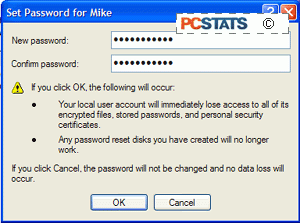
To change user passwords make sure you are logged in as a user with administrative privileges (the first user created during the XP install process has these). Right click on 'my computer' and select 'manage.' Expand 'local users and groups' then 'users.' Right click on each user and select 'set password.'
Note the ominous warning message. If you have used XP's built-in file encryption to protect any of your files, you must remove it before you change your password or you will lose access to the files. Otherwise, proceed and set a secure password for each account.
Step 2. Make sure your system is protected by a firewall
The Danger: Malicious users may locate and attempt to break into your computer from the Internet.
The Cause: All computers that communicate over the Internet must have a valid IP address, such as 61.232.252.6. These addresses allow computers to exchange data with other computers over the 'net. Your system also leaves a variety of ports open to listen for incoming data. Ports are access points for certain kinds of data to enter and leave your computer. For example, while you are viewing this website, your computer and our web server are communicating through port 80, the default port for the HTTP language that web pages generally use.
The trouble is that anyone can use freely available software like GFI's LANguard security scanner to scan a range of IP addresses for computers and gather information about these systems. If your computer is poorly password protected these utilities provide remote users with the ability to directly access your files.
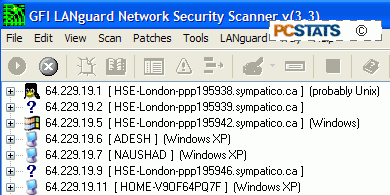
This happens because by default, many ports in your system are fully prepared to listen and respond to any data request from the Internet. This means that your system is fully visible, the equivalent of wearing glow-in-the dark clothes in a blackout…
The cure: Use a firewall program or device.
A firewall is a software program or hardware device which blocks remote access to your computer. It does this by closing all ports to data unless the communication is initiated from inside the firewall first. So you could, for example, surf this page without problems through a firewall since your computer sends the request for data to our web server first.
The firewall would note the Internet address that your request was sent to, and allow return communications from that specific address back through the firewall. However, anyone trying to scan a range of IP addresses for vulnerable computers would turn up a blank for your address, since the firewall blocks all unsolicited communication from the Internet.
Almost all home Internet sharing devices include firewalls, so if you are using a router to share your Internet connection within your home, you are likely already protected. Otherwise you need to use a software firewall. Windows XP comes included with one, though you need to activate it. Several free third-party software firewalls are also available, most notably Zone Lab's Zonealarm.
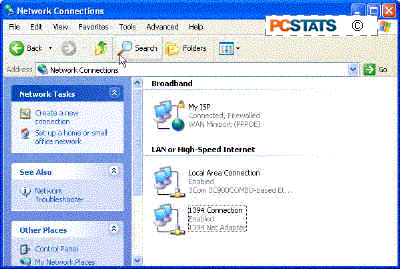
To activate the Windows XP firewall go to 'start/control panel/network and Internet connections/network connections' then right click on your Internet connection and select 'properties'.
Go to the 'advanced' tab and check the 'internet connection firewall' box. 
The windows XP firewall is now active and will block most non-requested data from entering your system.
If you have installed Service Pack 2 for Windows XP, the firewall works a little differently. Unless you have another form of firewall software like Zonealarm installed, the XP firewall should be active by default.
To check this, go to 'start\control panel\windows firewall' and ensure that the firewall is set to the 'on (recommended)' position. The 'windows firewall' icon in control panel is only available to Service Pack 2 users, so if it's not there, simply follow the directions given in the last paragraphs.
To use Zonealarm first download and install the software. 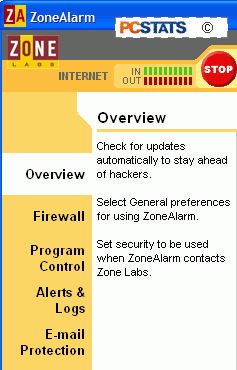
Go to 'alerts and logs' and change the 'alert events shown' setting to off. This is just to prevent the program informing you every time it blocks data remotely. The main advantage of Zonealarm over the XP firewall is its ability to block data coming from inside your system out to the Internet. This enables it to catch Trojan horse viruses and Spyware in the act and prevent them from sending privacy and security compromising data from your system. Zonealarm will pop-up a permission box every time a program attempts to access the Internet. 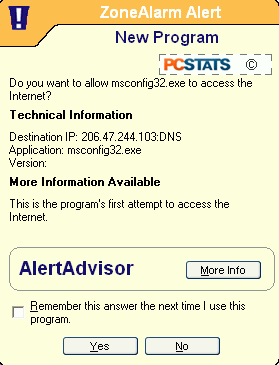
If it's a recognized program like IE, you can allow it permanent access by checking 'yes' and 'do not ask this question again.' Otherwise, you can go to the 'program control/programs' window within Zonealarm and manually set which applications can access the Internet. 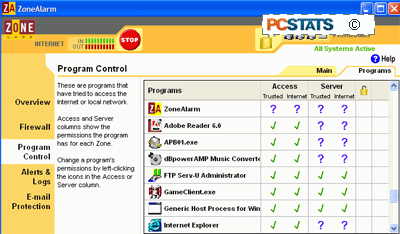
Step 3. Use antivirus software
The Danger: Computer viruses can cripple your computer and destroy your data.
The cause: There are an incredible variety of computer viruses on the Internet, with many different ways of infecting your system. The stereotypical vector for viruses is the email attachment, and this is still the most common source of infection for unwary users. Opening up a seemingly innocent attachment from a friend can have disastrous consequences. There are few computer users who have not experienced the effects of a computer virus at some point, and malicious coders keep churning them out.
The cure: Install and use a professional antivirus program
Using an antivirus software package from a reputable manufacturer like Symantec or MacAfee provides an effective defence against viruses. You should scan your system for viruses once a week at least, and use the software to examine any email attachments you are unsure about. Many packages, like Norton Antivirus, come with auto-protection features which will scan any files entering or leaving your system for viruses.
While this is fairly self explanatory, a couple of extra tips: if you're going to buy and install anti-virus software, do it now, before you get infected with a virus, rather than waiting until your system starts to act up. The reason for this is that many viruses have components that can disable or subvert popular antivirus programs like Norton's and McAfee's software. So if your system is infected before you install the antivirus software, it may not be able to help you.
Secondly, make sure you keep the program updated. Antivirus software manufacturers are constantly creating new sets of virus definitions to keep up with new threats. Without updated definitions, the software will not stop newer viruses from infecting your PC. Most reputable antivirus programs will update themselves automatically when you are connected to the Internet, but it doesn't hurt to make sure you have the latest update before you scan for viruses.
Personally I recommend the use of Eset's NOD32 as your choice of antivirus program, refer to my previous blog entry about NOD32.
Step 4. Check your PC for spyware and adware
The Danger: Spyware and Adware programs can quickly infest your PC, compromising privacy and performance.
The cause: Spyware and adware are generic names for a variety of programs designed to collect data and/or advertise products. Sound innocent? The catch is that these programs are often installed on your PC from websites or as part of 'free' software like Kazaa, and work from inside your computer, gathering information about your surfing habits for marketing purposes. Worse, this is only the tip of the iceberg.
Programs in this category may call up extra pop-up advertising while you are surfing, or even redirect your browser to websites of their own choosing. While makers of this type of software need to obtain your consent to install their programs, they are often presented in misleading ways, or hidden within the license agreements of other software.
There is a second category of programs involved as well, browser hijackers. These malicious programs can subvert your web browser's home page and links and generally cannot be removed without great difficulty. At their worst, these programs can make using your computer a trial. System and Internet performance can be slowed due to the extra data being sent from your computer, and floods of (often obscene) advertisements may dog your Internet surfing experience.
The cure: Install and use a reputable spyware finding/removal tool.
Fortunately, certain individuals have devoted a lot of time and effort to create free software which is specifically aimed at removing these (legal) pests from your system. One software system we tend to use is Ad-Aware, freely available from the Lavasoft website as it is the most popular and frequently updated removal tool. Ad-Aware functions much like any antivirus program, so it should seem instantly familiar to most users.
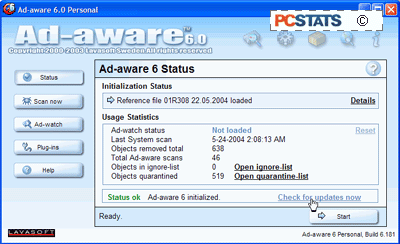
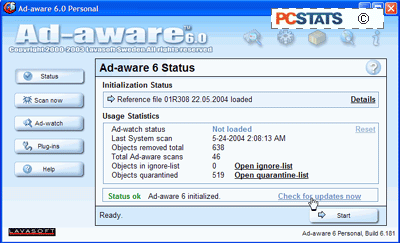
Use the 'check for updates now' function to make sure you have the latest updates. Hit the 'start' button and choose 'next' to scan your system with the default options.
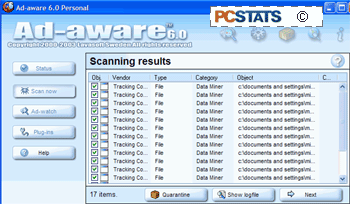
Once the scan is complete, you will be shown any suspicious files, registry entries or cookies detected. You can now delete or quarantine these files.
If Ad-aware found and removed malicious software, you should empty your recycling bin and restart your computer and scan again to make sure it is completely removed. Make sure to rescan your computer weekly.
Other recommend antispyware programs are Xoftspy, Spysweeper and ScanSpyware.
If you are using NOD32 you don't need to install a separate antispyware program because NOD32 also protects your PC from spywares and adwares.
Step 5. Update update update The Danger: Viruses and malicious users may exploit newly discovered security holes within Windows and Internet Explorer. The Cause: Windows XPis an extremely complex operating system, and as such has a number of bugs and design holes which are constantly in the process of being fixed by Microsoft. On the other side of the fence, there are users who are enthusiastically trying to discover these flaws, either for the purpose of informing Microsoft or just for the heck of it. Generally, major vulnerabilities or flaws are patched almost immediately after their existence is made known, or even before. However, users who do not update their systems with the new patch are at the mercy of anyone using software tools designed to exploit the vulnerability. A recent example of this would be the infamous 'blaster' worm which used a weakness in Window's RPC (Remote Procedure Call) handling to infest an enormous number of systems across the world. Once on a system, the virus could spread itself out to other vulnerable PC's and also force its host to shut down automatically. Microsoft quickly patched the security hole and provided a tool to remove the worm, but since many users did not patch their systems, the infestation spread and slowed down Internet traffic worldwide. The Cure: Keep your Windows computer up-to-date with the latest Microsoft security patches. Windows XP includes an automatic updating feature which will periodically check Microsoft for updates and download them to your system, ready for installation. To use automatic update, right click on 'my computer' and select properties, then choose the 'automatic updates' tab. 
If it is not already, check the 'keep my computer up to date…' checkbox to enable automatic updating.  Now run Windows update from 'start\all programs\windows update' to make sure you are fully patched for now. Windows update will now periodically check Microsoft's site for updates and download them to your PC. You will be prompted with an icon in the task bar when new updates are available. Now run Windows update from 'start\all programs\windows update' to make sure you are fully patched for now. Windows update will now periodically check Microsoft's site for updates and download them to your PC. You will be prompted with an icon in the task bar when new updates are available. Advanced security steps: The following five procedures will provide you with an extra blanket of security to complement the essential changes you just made to your system.
Step 6. Change the name of the administrative account The Danger: Malicious users may attempt to use the built-in 'administrator' user account to gain access to your PC. The cause: As mentioned above, every Windows 2000 and XP installation includes an 'administrator' user account which has full control over files and system settings. This account cannot be locked or disabled and is thus the first target for anyone trying to hack into your computer. While the account should already have a password, provided you followed the procedure above, this does not protect it from attack. The Cure: rename the administrator account. Renaming the administrator account adds an extra layer of security by removing the standard user name 'administrator' which any malicious user will try first when attempting to gain access to your PC. Make sure you are logged in as a user with administrative privileges - the first user created during the XP install process has these, as does the administrator. Right click on 'my computer' and select 'manage.' Expand 'local users and groups' then 'users.' Highlight the 'administrator' account and right click. Choose 'rename' and change the account to a name of your choosing. Step 7. Disable 'hidden' shares within XP and 2000 The Danger : malicious users can easily gain access to every file and folder in your computer. The Cause: Windows 2000 and XP both use a system of hidden administrative shares. Every drive on your computer system is shared under the name '(drive letter)$.' These shares exist to allow users with the correct username and password to remotely administer files on your computer. Of course, if a malicious user obtains a username and password with administrative rights to your system, all your files and folders are available to them over the Internet. They would be free to copy, change or delete as much of your data as they saw fit. The cure: Disable the hidden shares. Unless you are in a business environment, it is unlikely you will have a need for the hidden shares. Disabling them will considerably reduce the danger of your data being compromised remotely. You will need to edit theWindows registry using REGEDIT in order to carry out this step. Please ensure that you backup your registry to a file before editing it. To disable the hidden shares first start REGEDIT ('start\run' and type 'regedit') and then navigate to: HKEY_LOCAL_MACHINE\System\CurrentControlSet\Services\lanmanserver\parameters
Add the Dword value 'AutoShareWks' with a value of '0' and restart your computer. Step 8. Change Internet Explorer security settings The Danger: Viruses and browser hijacking programs can infect your system through the use of ActiveX code on certain websites. The Cause: By default, Internet Explorer will run certain content, including small programs embedded in the code of a website. An example of this sort of thing would be a pop-up ad asking you whether you wish to install so-and-so's software. Say yes and you may have just saddled yourself with a spyware problem. Certain malicious software may not even have the courtesy to ask before it has its way with your browser. The cure: Raise Internet Explorer's default security level. Fortunately, IE can be set to a more restrictive level of security. At this setting, the browser will not run certain types of content found on websites. This includes potentially malicious ActiveX code. Of course, this can also change your web browsing experience, as it will cut off certain content from safe websites also. To get around this, you can add known safe sites that you regularly visit to Internet Explorer's 'trusted sites' list.
To raise IE's security level: Open Internet Explorer, go to the 'tools' menu and select 'Internet options.' Now select the 'security' tab. 
Set the Internet zone to the 'high' security setting. This will ensure that IE will not run ActiveX instructions, the means by which most browser hijackers get access to your computer. You can place trusted websites that you regularly visit into the 'trusted sites' Internet zone. 
Site addresses that you enter here will be mostly unrestricted, allowing them to display their content properly. Step 9. Secure your shared files The Danger: Intruders may access your shared files The Cause: By default, Windows XP uses the simple file sharing system. This allows any user that has authenticated to your computer to have full access to all shared files. In Windows XP Home, the 'guest' user account is the account used by all remote users to access shared files. Of course, the guest account has no password by default, allowing unlimited, non-password access to your shared files for virtually anyone who finds your IP address. While a firewall will block this type of access in most cases, it still pays to limit your venerability by configuring simple file sharing and the guest user account more securely than the default. The Cure: Secure and configure the guest user account If you are using Windows XP Professional, you should password protect and disable the guest account. This will force any intruder to use one of the user accounts you created or the administrator account, both of which should now be secure if you followed the above procedures. Make sure you are logged in as a user with administrative privileges (the first user created during the XP install process has these, as does the administrator). Right click on 'my computer' and select 'manage.' Expand 'local users and groups' then 'users.' Highlight the 'guest' account and right click. Choose 'set password' and provide the account with a secure password. Now right-click the guest account again and choose 'properties.' 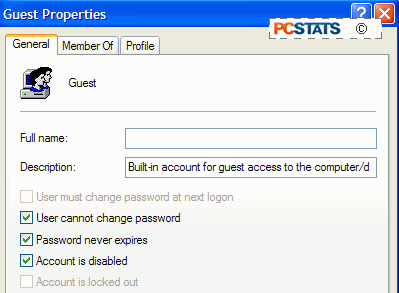
Check the 'account is disabled' box.If you are using Windows XP Home, you cannot truly disable the guest account, as it is used as an integral part of the file sharing system. You can password protect it though… Bring up the command prompt (start/run and type 'cmd') and type 'net user guest password' where 'password' is the password you want to use to secure the account. Step 10. Stop using Internet Explorer and Outlook Express
The Danger: many viruses and malicious programs target Internet Explorer and Outlook Express specifically.
The Cause: IE and OE are unquestionably the most popular web browser and email client in the world. They are the default applications that a majority of Windows users are familiar with. Because of this, many viruses and other malicious programs are created to target specific vulnerabilities in these two programs. Since the user base is so huge, they can afford to be specific. These viruses generally will not affect systems which employ other products for their web browsing and email retrieval.
The Cure: Learn to use a new web browser and email client.
There are several free browsers and email clients available that can easily replace IE and Outlook Express. The trick is to get used to using them. By not using IE and OE, you considerably reduce the danger of infecting your system with a virus.
Some examples of alternate browsers and mail clients include;Mozilla the makers of this popular browser also offer Thunderbird, a free email client.Opera. Eudora which is an ad-supported mail client with a long and successful history.
Labels: Maintenance, Tips |
| posted by CNSQ Online @ 4:26 PM |
|
|
|
| AntiCrash: the most powerful anti-crash tool for PC. |
| Tuesday, January 2, 2007 |

AntiCrash can intercept and fix up to 95.8% crashes, errors, freezes and blue screens. When a crash occurs, AntiCrash fixes it automatically; you have nothing to do! New! AntiCrash now also includes a unique technology, AutoRepair™. With AutoRepair™, scan & repair all your computer problems with a single click - AutoRepair™ automatically determines what is wrong on your computer with an advanced Artificial Intelligence system, and fixes it instantly! * Total protection from crashes and freezes AntiCrash protects your computer like no other software can. Not only AntiCrash protects you against 95.8% crashes, but it also automatically fixes the crashes; you don't have to do anything, AntiCrash does all the work for you! AntiCrash is also the only software capable of intercepting blue screens and freezes. * AutoRepair technology included With AutoRepair, using dozens of separate tools to scan your computer is now forgotten. AutoRepair can find and repair thousands of thousands of problems, with its built-in advanced Artificial Intelligence - all automatically! * Anti-boot system for Yahoo Messenger Because sometimes hackers can be just as dangerous as crashes, AntiCrash introduces BootSafe, your ticket for boot-free chatting with Yahoo. If a malicious user tries to boot you, BootSafe intercepts it and deactivates the attempt. You can even configure AntiCrash to ignore certain User IDs! * Files protected from corruption Sometimes, a crash can corrupt your data. Not with AntiCrash, and its built-in safeguard Lifebelt. Lifebelt will automatically backup a copy of all open files if a crash occurs, making it sure for you to always recover all the files you were working on. * Easy to use In addition to revolutionary technologies and near-to-perfect performance, AntiCrash features a state-of-art interface, extremely easy to use. Our interface fully respects Microsoft's guidelines and is very intuitive. Most of the time, you don't have to do anything at all, since AntiCrash works in background, but should you decide to explore its interface and expert features, you'd be surprised how ease of use can mix with advanced functionality. * Smart Software™ AntiCrash is adaptive and knows what to let you know and when. If you forget to run AutoRepair, it will automatically remind you to do so; the Main Menu allows you to know AntiCrash's status in a glance; and the list goes on. * And much more AntiCrash features other great functions, such as damaged file recovery or lost data recovery! It is impossible to list all of AntiCrash's functions on a single webpage. http://www.dachshundsoftware.com Labels: Software Utilities |
| posted by CNSQ Online @ 8:33 PM |
|
|
|
| HARE 1.5.1 PC ACCELERATOR |
|

Hare: the best acceleration utility for PC.
With Hare, accelerate any computer up to 300%, even latest generation PCs using Pentium 4 or Athlon MP; simply install Hare and be accelerated.
* Accelerate your computer automatically
Hare doesn't use "classic" acceleration methods, such as a few registry tweaks, and few modified settings. Hare will improve performance no matter what software you use, thanks to a revolutionary compact 88-bit Kernel, which accelerates common system instructions. In addition to that, Hare has a very complete CPU Tasking technology designed to fit your needs; Hare determines automatically what program you use, and how much CPU it must allocate to it.
* Mem Doubler or intelligent RAM management
There are dozens of RAM defragmentation software for PC; forget them all. Mem Doubler has a unique function which is able to determine when your RAM needs to be defragmented! Just tick a checkbox, and Mem Doubler will adapt to your computing style.
* Automatic RAM preservation
How can you run over thirty heavy programs such as Adobe Photoshop or Macromedia Dreamweaver with only 128Mb of RAM? With Hare, and its "Automatic RAM preservation" function: it distributes RAM to programs when they need it, not when they want it. [Example]
* Accelerate games
With a set of pre-programmed instructions compatible with nearly all PC games, GameZap will increase your game's frames per second by near 10% in most cases. And GameZap is compatible with OpenGL!
* Easy to use
Hare features a state-of-art interface, extremely easy to use. Our interface fully respects Microsoft's guidelines and is very intuitive. Most of the time, you won't have to configure Hare, since it works in background, but if you want for example to check out how much free memory you have, or if you feel like fine-tweaking Hare, you'll be delighted by its ease of use, eye-candy icons and comprehensive wizards.
* And much more
Hare features other great functions, such as WinOptimize, a wizard that automatically cleans and optimizes Windows! It is impossible to list all of Hare's functions on a single webpage, so why don't you get it now and find out what it feels to have a really fast computer?
Website: http://www.dachshundsoftware.comLabels: Software Utilities |
| posted by CNSQ Online @ 8:30 PM |
|
|
|
| Auslogics Disk Defrag - Defrag Your Disks Faster |
|
 Disk fragmentation leads to system slowdowns, PC crashes, slow startup and shutdown and sometimes to system failures. Auslogics Disk Defrag® is designed for fast optimization of today's modern hard disks. Get the maximum performance out of your expensive hardware investments. And it's absolutely FREE. Disk fragmentation leads to system slowdowns, PC crashes, slow startup and shutdown and sometimes to system failures. Auslogics Disk Defrag® is designed for fast optimization of today's modern hard disks. Get the maximum performance out of your expensive hardware investments. And it's absolutely FREE.  Improve computer performance and stability Improve computer performance and stability
Increase your productivity - no more waiting for files to open
Defragment disks in only a few minutes
Useful disk fragmentation map and detailed fragmentation report
Windows XP Home and Professional, 2000/2003 and Vista supported
DOWNLOAD IT HERE
Labels: Software Utilities |
| posted by CNSQ Online @ 8:19 PM |
|
|
|
| NOD32: Recommend Antivirus/Antispyware Software |
|

Here are several reason why I recommend NOD32 as your choice for antivirus/antispyware software:
Comprehensive Protection:
Running separate applications for viruses, hackers, adware, and spyware can slow your PC, be difficult to manage, and provide questionable protection. Beware of large, bloated internet security suites that consume hundreds of megabytes on your PC. These typically exist because vendors have acquired products and 'bundled' them together. In contrast, ESET NOD32 was designed from the core as a single, highly-optimized engine that works as a unified Anti-Threat system to protect against a broad spectrum of malware. Viruses, worms, spyware, and other malicious attacks, which are constantly evolving. ESET NOD32 utilizes patent-pending ThreatSense® Technology to detect tomorrow's threats in real-time, by analyzing code execution for malicious intent - keeping you ahead of the malware-writers.
Minimal Performance ImpactNOD32 conserves resources in memory and on disk, leaving more for your critical applications. The installer is just 11 MB and the application consumes an average 23 MB in memory (this fluctuates with changes to the detection technology). ThreatSense updates, which includes heuristics logic and signatures, are usually between 20 kB and 50 kB. Switch to NOD32 and be more productive. Fastest ScanningGreat protection doesn't have to slow down your computer. Written largely in assembly language, NOD32 continually wins awards for the fastest performance of any antivirus application, on average 3 to 34 times faster than the competition (source: Virus Bulletin). Switch to NOD32 and upgrade your computer's performance. Easy to ManageProgram and database updates are automatically performed behind the scenes. If you're an individual or home office user you can just 'set it and forget it.' Businesses and organizations with large distributed networks can use the powerful Remote Administrator to centrally deploy, install, monitor and manage thousands of NOD32 workstations and servers. Get the best protection with the smallest footprint and fastest performance. NOD32 offers multiple layers of protection for your organization, at the desktop, file server and mail gateway. Find out which solution is best for you. Proactive Real-Time Detection The best security is proactive. Malware protection must be real-time at the point of impact. Every minute one waits for a virus signature update creates a window of vulnerability that could have devastating consequences. ESET NOD32's ThreatSense® Technology closes the window of vulnerability left open by other reactive , signature-based responses. NOD32 analyzes application execution in real-time for malicious intent to detect and block over 90% of new malware threats proactively, without the need for signature updates in most cases. Most other vendors release signatures hours after their customers have been victimized and submitted samples.
Protection against threats from multiple input vectors is provided by the following modules:
Antivirus MONitor (AMON)
An on-access (memory-resident) scanner, which automatically scans files before they're accessed.
NOD32
An on-demand scanner, which can be run manually on specific files or disk segments. It can also be scheduled to run during off-peak times.
Internet MONitor (IMON)
A memory-resident scanner that runs on the Winsock level to prevent infected files from reaching the computer's disks. Its scans internet web browsing traffic (HTTP) and incoming e-mail via the POP3 protocol.
E-mail MONitor (EMON)
An auxiliary module for scanning incoming/outgoing e-mails via the MAPI interface, such as Microsoft Outlook Microsoft Exchange.
Document MONitor (DMON)
Utilizes the proprietary Microsoft API for scanning Microsoft Office documents (including Internet Explorer).
Website: NOD32.com
Labels: Antivirus, Software Utilities |
| posted by CNSQ Online @ 12:57 PM |
|
|
|
| CCLeaner: De-Clogging your PC |
|

CCleaner is a freeware PC optimization tool. It combines a system cleaner that removes unused and temporary files from your system and also a fully featured registry cleaner! CCleaner allows Windows to run faster, more efficiently and gives you more hard disk space.The best part is that it's Small, Fast and Free!
 Cleans the following Windows components: Cleans the following Windows components:
- Internet Explorer

- Temporary File Cache.
- URL History.
- Cookies.
- Hidden Index.dat files.
- Last download file location. - Firefox

- Temporary File Cache.
- URL History.
- Cookies.
- Download manager. - Recycle Bin
- Clipboard
- Windows Temporary files
- Windows Log files.
- Recent Documents (on the Start Menu).
- Run history (on the Start Menu).
- Windows XP Search Assistant history.
- Windows XP old Prefetch data.
- Windows memory dumps after crashes.
- Chkdsk file fragments.
Advanced Options allow cleaning of: - Menu Order cache
- Tray Notifications Cache
- Window Size and Location Cache
- User Assist history
- IIS Log Files
- Custom Folders
 Application Cleaning: Application Cleaning:
As well as cleaning up old files and settings left by standard Windows components, CCleaner also cleans temporary files and recent file lists for many applications. Including:
- Firefox, Opera, Media Player, eMule, Kazaa, Google Toolbar, Netscape, Office XP, Nero, Adobe Acrobat, WinRAR, WinAce, WinZip and more...
 Registry Issue Cleaning: Registry Issue Cleaning:
CCleaner uses an advanced Registry to check for problems and inconsistencies in your registry. It can check the following: - File Extensions
- ActiveX Controls
- ClassIDs
- ProgIDs
- Uninstallers
- Shared DLLs
- Fonts
- Help File references
- Application Paths
- Icons
- Invalid Shortcuts and more...
 Safety: Safety:
CCleaner was designed from the ground to be safe and secure to use. It has multiple levels of checks in place to ensure that it cannot delete any useful information or documents you may still need. We also certify that it contains no Spyware or Adware. High Security:For the super cautious users we also offer secure file erasing. By overwriting the files before deleting them, making it impossible to recover the data. Multiple Languages: Thanks to the translators, CCleaner is available in 31 different languages:
English, Albanian, Arabic, Catalan, Chinese (Simp), Chinese (Trad), Czech/Slovak, Danish, Dutch, Finnish, French, Galician, German, Greek, Hebrew, Hungarian, Italian, Japanese, Korean, Lithuanian, Norwegian, Polish, Portuguese, Portuguese (Brazilian), Romanian, Russian, Serbian Cyrillic, Serbian Latin, Spanish, Swedish and Turkish.
Screenshots:

Download: CCLEANER.COM
My Personal Assessment:
I use this when I'm using my PC. I run this before using the PC so that "clutters" are removed.
Labels: Software Utilities |
| posted by CNSQ Online @ 12:17 PM |
|
|
|
| DriverGuide Toolkit - Backup Your Drivers Faster |
|
DriverGuide Toolkit identifies and lists drivers installed on your computer and, when connected to the Internet, allows you to search DriverGuide.com (and other sources) for driver updates and manufacturer sites. In addition, it allows you to backup your currently installed drivers for safe keeping. Backing up your Windows driver files means that they will be available to you the next time you need to reinstall the driver or the whole operating system. DriverGuide Toolkit places the driver files in one organized location of your choosing. DriverGuide Toolkit is especially helpful in situations where you have a computer in your possession and the internal hardware is unknown. DriverGuide Toolkit can identify the hardware on the system and the associated drivers, back them up to a specified location, and find the latest driver updates for them. DriverGude Toolkit is even network compatible - you can just as easily connect to a remote computer on your network, backup drivers, and find updates! My personal assessment:
I use this software everytime I do some reinstallation and upgrading jobs. Rather than installing the driver's one by one, using Driver Guide toolkit would make my job faster and efficient.
Website: DriverGuide ToolkitLabels: Software Utilities |
| posted by CNSQ Online @ 11:27 AM |
|
|
|
| ProTech 2.0 - The Introduction |
|
| ProTech 2.0 is a PC troubleshooting, maintenance and upgrade blogsite which centers on PC Hardwares and Utility softwares. This would also include product reviews on the latest hardwares and utility softwares. Labels: Introduction, Protech 2.0 |
| posted by CNSQ Online @ 11:21 AM |
|
|
|
|
|